
The panel
A tour of the controls, views, audio monitor, memory channels and transmit safety.
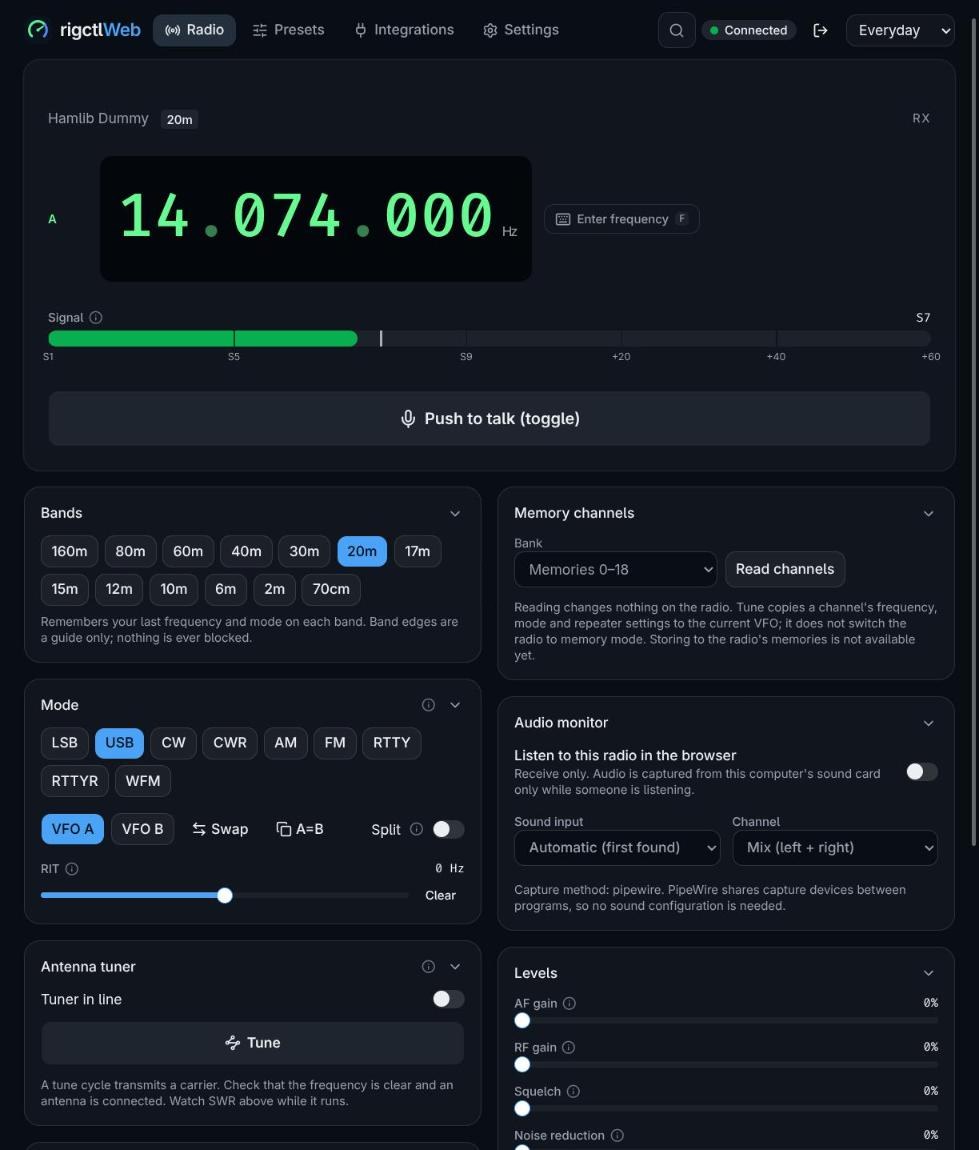
Frequency and meters
The big display is the current VFO's frequency. Scroll over a digit to tune it, click a digit to step it, or press F (or Enter frequency) and type one. Below it is the S-meter; while you transmit, the power, SWR, ALC and other meters your radio reports take over, with peak hold.
Views
Not everyone wants forty sliders. Pick a view from the header or in Settings → Views:
- Essentials: what you need to listen and make a contact: frequency, band, mode, volume, squelch, power, S-meter and SWR.
- Everyday: adds VFO and split, tuning step, filter width, RF gain, noise reduction and blanker, AGC, preamp, attenuator and mic gain.
- Advanced: adds RIT/XIT, speech compression, notch and passband shift, VOX, monitor, CW keyer and break-in.
- Everything: every control your radio offers, including its own settings and parameters.
You can also make your own view, starting blank or from any of these, and tick exactly the controls you want. Each control has an ⓘ with a short explanation. Press / to search for a control or a setting.
Bands, modes and VFOs
- Bands remember the last frequency and mode you used on each band. Band edges are a guide only; rigctlWeb never blocks a frequency.
- Mode shows only the modes your radio supports.
- VFO A/B, Swap, A=B and Split work as on the radio. RIT and XIT have a slider and a Clear button.
Transmit and the tuner
Push to talk (toggle) keys and unkeys the radio. The Tune button starts the radio's antenna tuner, which transmits a carrier: check the frequency is clear and an antenna is connected. See Transmit safety below.
FM and repeaters
On radios that support them: transmit tone (CTCSS), tone squelch, repeater shift and offset.
Memory channels
Read channels reads the radio's memories without changing anything on the radio. Tune copies a channel's frequency, mode and repeater settings to the current VFO; it does not switch the radio to memory mode. Voice and CW message slots are never listed. Storing to the radio's memories isn't available yet.
Audio monitor
Listen to this radio in the browser plays the radio's receive audio from the computer's sound card. It's receive only, off by default for each radio, and audio is captured only while someone is listening. Pick the Sound input (the radio's USB codec, for example) and the Channel: some radios put audio on the left channel only.
rigctlWeb uses what the computer already has: PipeWire or PulseAudio on most Linux desktops and Raspberry Pi OS, ALSA otherwise, and ffmpeg on macOS and Windows. If the input is too loud or quiet, the input level control changes the computer's input volume, with a way back to the original.
Presets
The Presets page applies settings other operators shared for your radio and an operation like FT8 or Winlink. See Radio presets.
Themes
Light, dark, and a red night theme that's easy on dark-adapted eyes: Settings → Appearance.
Transmit safety
rigctlWeb can key your transmitter, so it's careful about it:
- Transmit timeout. If the radio stays keyed from rigctlWeb for longer than the radio's timeout (3 minutes by default), rigctlWeb unkeys it.
- It unkeys only what it keyed. If another program or the operator keyed the radio, rigctlWeb leaves that transmission alone. If rigctlWeb itself stops while it had the radio keyed, it unkeys the radio when it starts again within 15 minutes and finds it still transmitting.
- Read-only radios are never changed or keyed.
- The API never keys. The public API can't transmit; see API.
- Presets never key, and refuse anything that could: see Radio presets.